
How we make your text designs stand out? Designing realistic 3D text in PixelLab is the way to make text design stand out and look good. This functional and versatile mobile app provides a bunch of amazing tools making drawing realistic 3D text simple and fun. Whether we’re a graphic designer, a social media marketer, or just want to experiment with your creativity this guide will walk you through the process of designing amazing 3D text effects.
If we’re looking at design apps for comparison, head over to our Pixellab vs Canva comparison post to get an idea which one works best for us. Besides that, check out how to download PLP templates to speed up the work or create own custom 3D logos for our brand. Let’s we get started and turn this text into something ELITE!
Complete Guide on Creating 3D Text in Pixellab APP
Let me show you how to create attractive 3D text effects in Pixellab…
Here’s a comprehensive guide to creating 3D text
1- Launch the Pixellab App
First of all we want to open Pixellab and start a new project. When we start the app we’ll see a blank canvas like this one below – that’s where we start.
Use of pixellab apk mod on pc or laptop
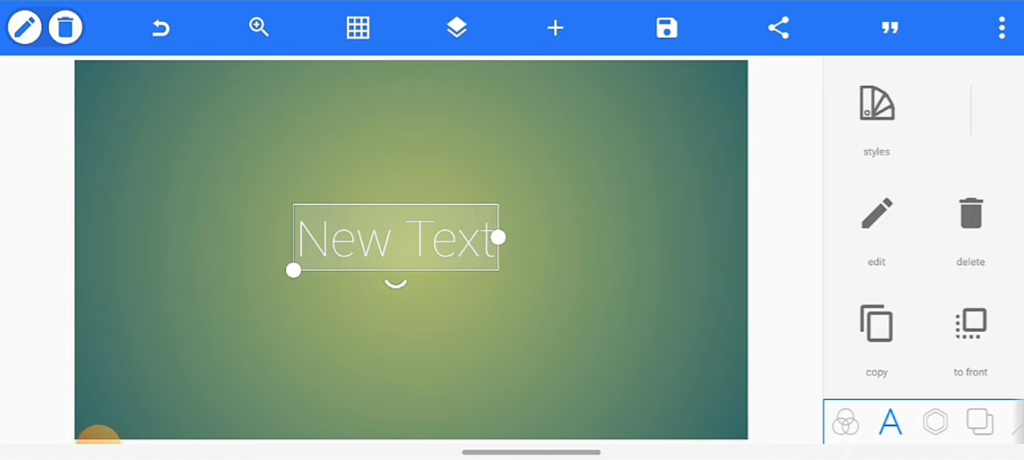
2- Add Text
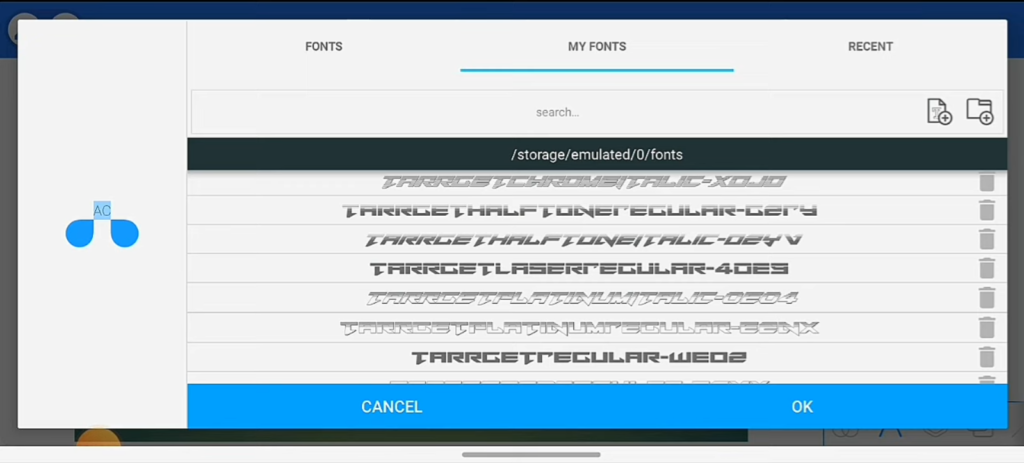
To build the base text you need to tap on the “A” button under the bottom bar of the App and select “Add Text”. We type in the word or phrase to want to change into 3D. It’s better to use bold and thick fonts at this stage since this type of font is better for making 3D effects. We can change our font by tapping on the “Fonts” button under the text editing menu.
3- Adding 3D Effect
Well there’s the important part – creating the 3D effect. In the text editing menu, search for the “Style” option. In the Style menu, We’ll find “3D Effect” or “Shadow”. When we select that can see a few big options.
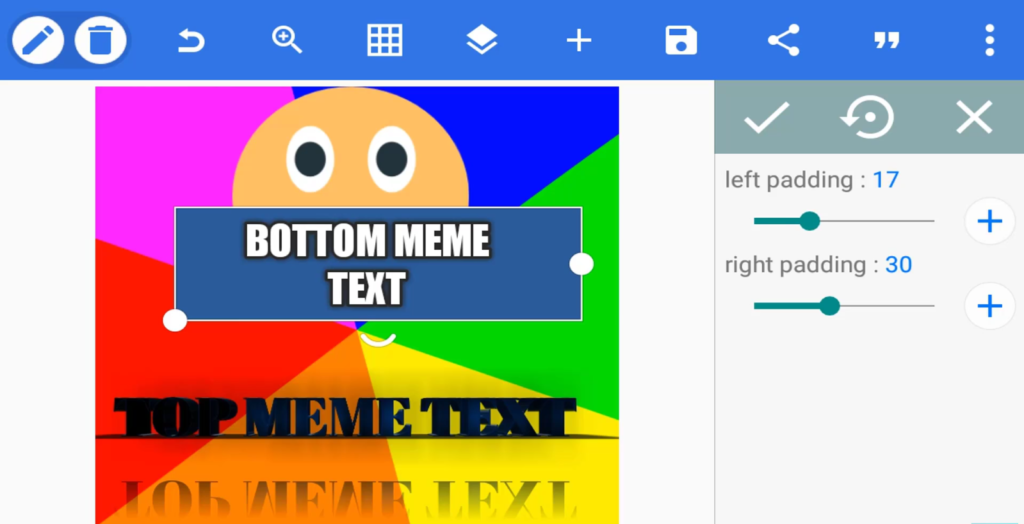
Add padding to the text box pixellab for pc.
4- Adding Depth
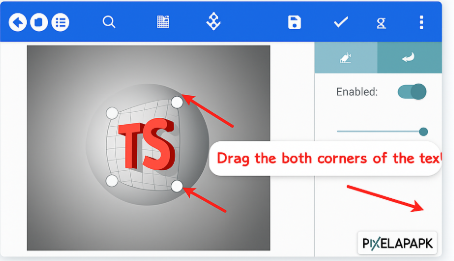
The Depth control is what makes your 3D effect look “deep” (think of it as controlling how far back the text goes ). Start with a moderate value ( 20-30 ) and adjust accordingly.
5- Angle Setting
The Angle setting is what controls the 3D effect. Say we have text that want to make 3D look like. From different angles we hit the angle that defines where the ” shadow ” comes out. I usually hit 45 degrees but we can experiment with more angles for different effects
6- Choosing Color
Color is also quite important when it comes to convincing 3D text. So for the 3D portions we’ll want to use a slightly darker shade of our main text color, giving that illusion of depth through natural shadow progression. For example if we have bright red main text we use a darker red for the 3D portion.
7- Adding Shadow
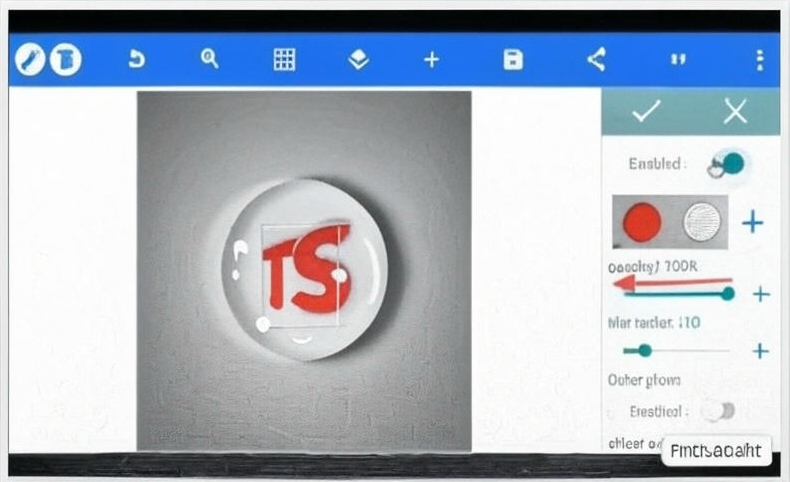
To get a bit more 3D effect we could add a little shadow under your text, that will help ground the text and make it look like it’s floating over the background. You can do that by selecting the “Shadow” option in the Style menu.
Fine-tuning is key to professional-looking results. Pay attention to:
- The contrast between your text and background
- The balance between the depth effect and readability
- The consistency of our light source angle
Final Thoughts
To wrap things up, text in PixelLab is a fun and easy way to create unique text for our designs. With just a few easy steps we can add some depth and personality to our text. If we’re interested in other options, there’s also Canva. This app has tools for adding 3D-like effects, shadows, and gradients to our text without any additional code required. Both apps make it easy to enhance our text and give it personality.