
Pixellab is a wide application of graphic design, which has various kinds of fonts and 3D text templates that can make the design project easy for beginners and the professionals. It offers total creative freedom with unlimited custom font support in multiple languages like Urdu, Hindi, Marathi and Bengali. In this tutorial, we will show you how to add custom fonts in Pixellab for Android and PC. You can go to the Pixellab APK download for all the premium tools and features.
Preparing Custom Fonts – Pixellab Mod Apk
Understanding Font Formats:
Understanding Font Formats: Pixellab supports the popular font formats like. TTF (TrueType Font) and. OTF (OpenType Font). These are two of the most common formats used for custom fonts and both are supported by Pixellab. When downloading fonts make sure the format is one of these to make sure it will work.
Where to Find Custom Fonts:
You can find a great deal of free and paid fonts via trusted websites like:
- Google Fonts
- Dafont
- 1001 Fonts
You should check the licensing of the font you want to use especially if you ‘re planning on using it for business. Most fonts are free for personal use but you need a license to use them commercially.
Downloading Fonts:
- Select the Font: The font you decide on should suit your design goals.
- Download the Font File: After you decide, download the font, it’s usually as a.zip file.
- Extract the Files: Extract the. zip file using your file manager to view the .ttf /. otf font files.
- Organize Your Fonts: So you keep them within reach, have a specific folder for your custom fonts, so you won’t have any trouble importing them into Pixellab.
Importing Custom Fonts into Pixellab
Locating the Font File:
After you have extracted the font download, you’ll have to locate it with the help of a file manager app on your Android or PC.
- For Android: Find the downloaded font files using any file manager app (like Files by Google, ES File Explorer).
- On PC: If you are using an Android emulator like BlueStacks, go to the folder where the font is saved.
Copying or Moving the Font File
1. Go to Pixellab’s Font Folder
Folder open your file manager and locate Pixellab’s folder. For Android it is often under Internal Storage > Pixellab > Fonts If it doesn’t exist you can create one.
2. Move or Copy the Font:
Publish or copy the downloaded font file (. ttf or. otf) to the Fonts directory.
3. Update Pixellab:
Once the font is in the right folder, open Pixellab and the new font should be shown in the app’s font list and ready to use in your designs.
Installation Steps for Pixellab Mod APK
So if you have not installed Pixellab Mod APK yet, make sure to read the following steps before you move toward the import font.
Step 1: Download Pixellab Mod APK
Visit a trusted website to download Pixellab Mod APK, for instance pxellabapk.com
Step 2: Allow Installation from Unknown Sources (Android Only)
Before installing the APK on your Android device, you need to enable you to install apps from unknown sources:
- Settings -> Security -> Check Enable Install from Unknown
- Necessary to install applications not downloaded from the Google Play Store..
Step 3: Install Pixellab Mod APK (Android)
Once APK is downloaded, click on the file to begin the installation. Open an emulator, Make sure that Android already has Pixellab installed.
Step 4: Running Pixellab on your PC Meta (Windows and Mac)
For PC users, you’ll need to install an Android emulator like BlueStacks:
- To get started, download and install BlueStacks on your PC.
- After that, launch BlueStacks and either head over to the Google Play Store or use an APK file to get the official Pixellab app.
- Once you have it installed, open Pixellab in the emulator and follow the steps to add your custom fonts as mentioned earlier.
Using Custom Fonts in Pixellab
Now that you’ve successfully added your custom fonts to Pixellab, it’s time to put them to good use in your designs. Here’s a handy guide on how to find and apply those custom fonts, along with some tips to make your text designs really pop!
Accessing Custom Fonts in Pixellab:
- Launch Pixellab: Open the Pixellab app. As for using the Pixellab Mod APK, you can follow the app setup steps to install it on your devices.
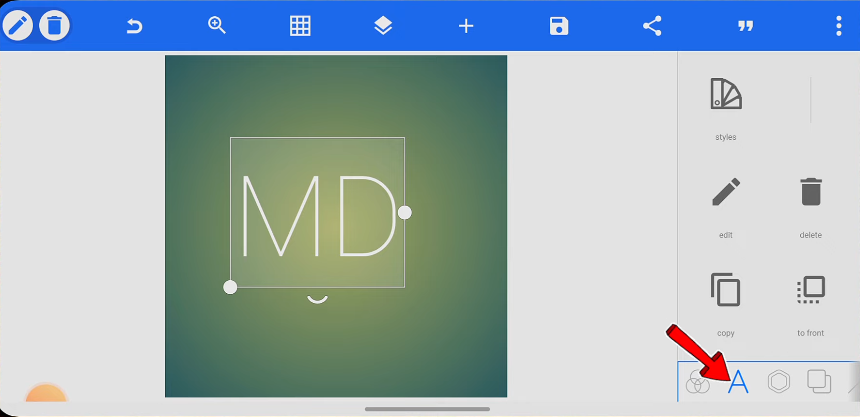
- Go to the “Text” Feature: On the home screen, tap the “Text” icon to create a new text element. This will give you the ability to enter your own text.
- Choose the “Fonts” Option: Once you have made or selected a text box, click the “Fonts” button to get to the font
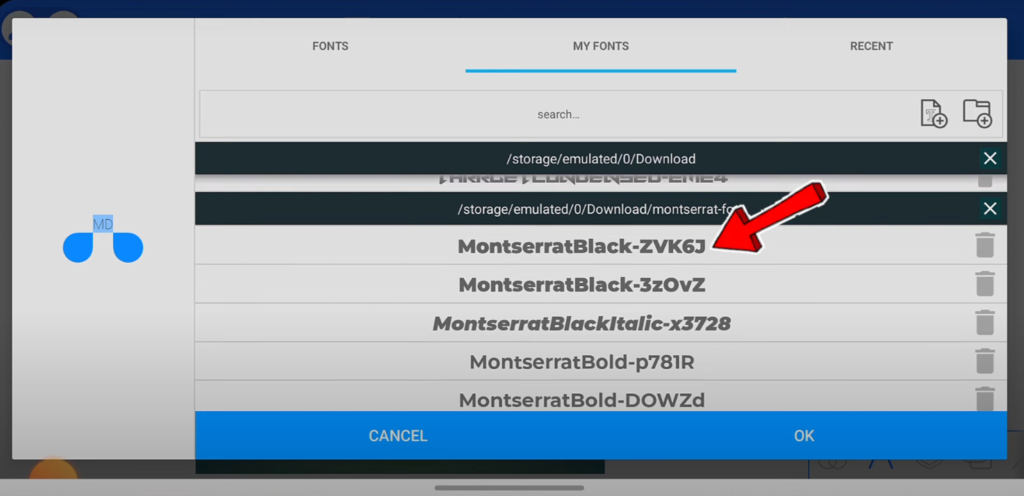
- Find Your Custom Font: Scroll the supported font list Your newly added custom fonts will appear under “My Fonts” or “Custom Fonts” (depending on which version of Pixellab you are using). Then scroll down and choose your custom font.
Applying the Custom Font:
- Add Text:
Choose the custom font, and then enter what you want written. Your typed text will automatically use the custom font. - Adjust Font Size:
A font size slider/input box is provided, just drag this until you reach the font size as in the design you are working on. - Customize Font Color:
Combine the following, then Color, select a color to your taste. You can select a color from the color palette or input a specific hex code if you need complete control over the color. - Apply Text Effects:
Pixellab provides you with a number of text effects such as shadow, outline and 3D effects. So use these text effects to make your text look even better. Try different styles to find the one that suits you best.
Tips for Improved Text Design
1. Choose the Right Font for the Project:
There aren’t necessarily some fonts that will work for every design. It really comes down to the tone and message of your project when choosing a font. For example a fun font might work for more casual designs when paired with a minimalist font for a more professional design
2. Mix Fonts and Styles:
In my opinion blending fonts and styles will give your design depth and interest. Have bold styles for the title and less aggressive types for the text. Blending serif and sans serif fonts is also a nice contrast. Just don’t overdo it — if there is too much variety the design will feel like a mess.
3. Spacing and Alignment:
It’s A big deal to have good alignment and letter spacing ( tracking ) and line spacing (leading) to make a huge difference for the readability/visual appeal of text. Adjust the parameters to make sure your text is symmetrical and perfectly positioned within your context.
With these steps and tips you will be able to take maximum advantage of the potential of custom fonts in Pixellab and create professional & creative designs. Try different font types, sizes and styles to get that perfect touch to your text for your projects.
Troubleshooting Common Issues with Custom Fonts in Pixellab
If you’re having a problem with custom fonts in Pixellab–no worries, we’ve got some solutions to fix most of the common problems.
1. Custom Font Not Visible in Pixellab
You can usually adjust the custom font if it ‘s not available through the app via:
- Check file format (and position):
Make sure the font file is in a supported format i. e.. TTF or. OTF. Also make sure the font file is in the right folder (usually Pixellab > Fonts). If the font file is not in the right location Pixellab will not find it.
- Restart the App or Device:
Sometimes the app/device just needs to be restarted for a second. So close the Pixellab app completely and then reopen it. If that doesn’t work restart your device. This way the app will recognize the new font.
2. Font Compatibility Issues
If your font still doesn’t work you may have a compatibility problem.
- Check for Corrupted Files: Sometimes you may download the font file as corrupted by something as when you download the font please download from the source you know is not corrupted.
- Convert Font Formats: If your font file is in an unsupported format there are online tools that will convert it to .TTF or .OTF file. FontConverter is one website that would convert the file format.
3. Handling Multiple Fonts
Given the growth of custom fonts I imagine it can get a little confusing trying to keep track of them. Here are some suggestions to get your fonts to work better
- Organize Fonts for Easy Access: Put them in a folder for your Pixellab fonts. This way you ‘ll have them all in one place and you can easily find them if you need them.
- Delete Unwanted Fonts: If you don’t need a particular font anymore just head over to Pixellab > Fonts & delete it. That way everything in your list of fonts will be organized and uncluttered.
By using these simple troubleshooting tips you can quickly resolve most common font issues in Pixellab and get back to work on your designs – and in no time at all.
Conclusion
Add external fonts in Pixellab Mod APK you can genuinely create truly one-of-a-kind and personalized designs. With these simple steps, you can easily import external fonts into the app and give more personality and flexibility to your text designs. With the full range of customization options available, you can take your design projects to the next level. Whether you’re on Android or PC, this process is fast and easy and it’s very simple for you to improve your creative skills.