
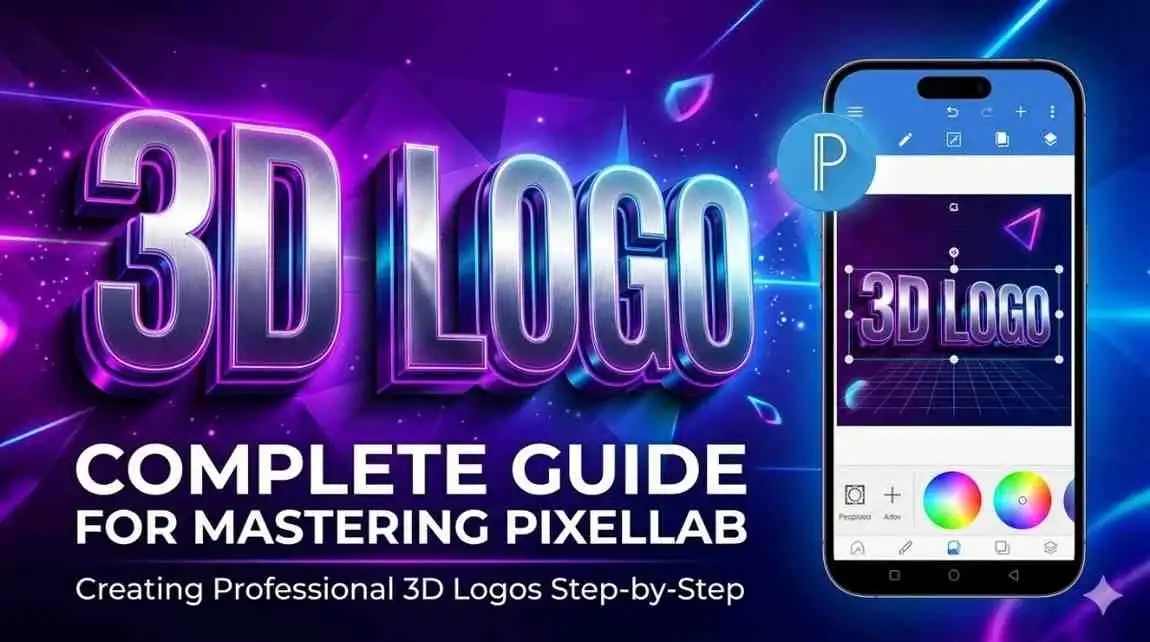
Why do we design logos? Branding is the reason to design a logo. Branding means much to every business. Everybody remembers their brand by their logo and the colour of that brand. So for this purpose you need to learn logo design. Pixellab is an excellent tool for both graphic designers and content creators. We can make a logo on Android devices and on PC without any restrictions using Pixellab for PC.
Step by step guide – How to design logo in Pixellab app
In this post I’ll walk you through step by step how to use Pixellab to create a 3D logo

Step 1- Download and Install
After downloading and installing Pixellab Apk premium Launch the App.

Step 2- Background Adjustments
After deleting the default text box, change background color to light grey.
- It ‘s in the bottom right corner of the screen: click the boxes.
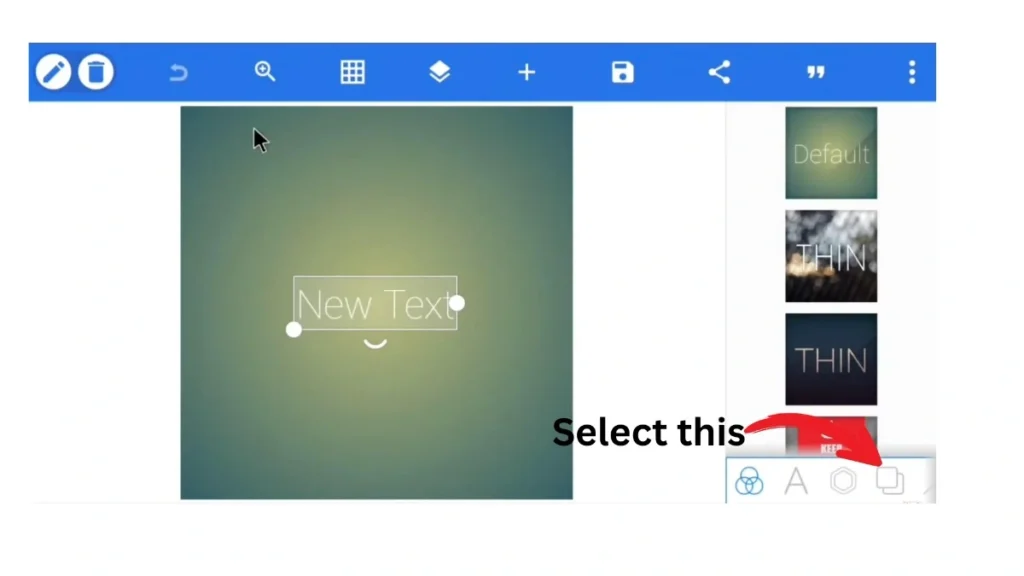
- First select the color for the right side of the gradient. Then select the color palette.
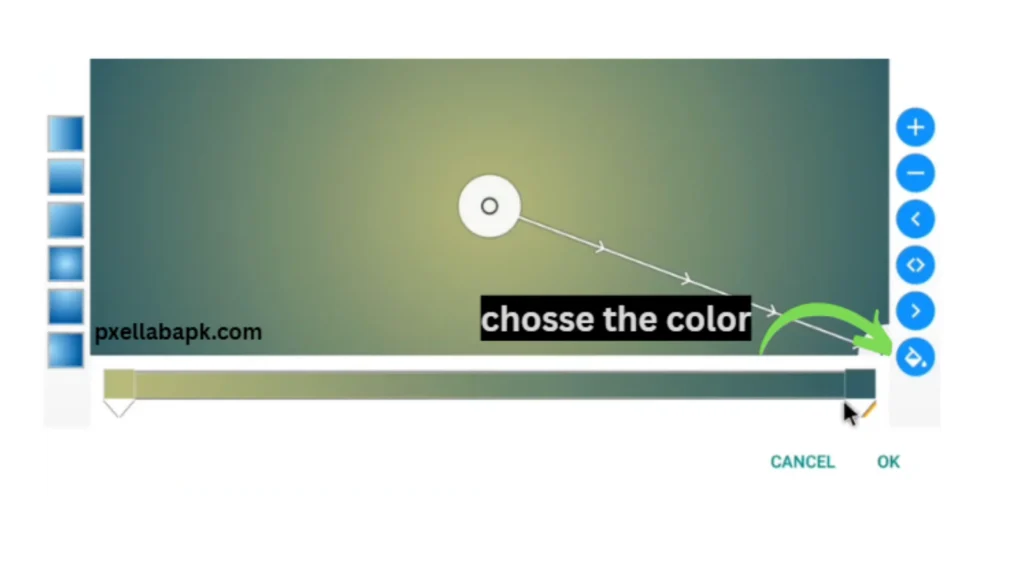
- Now move the top bar to the exact left and click “ OK “
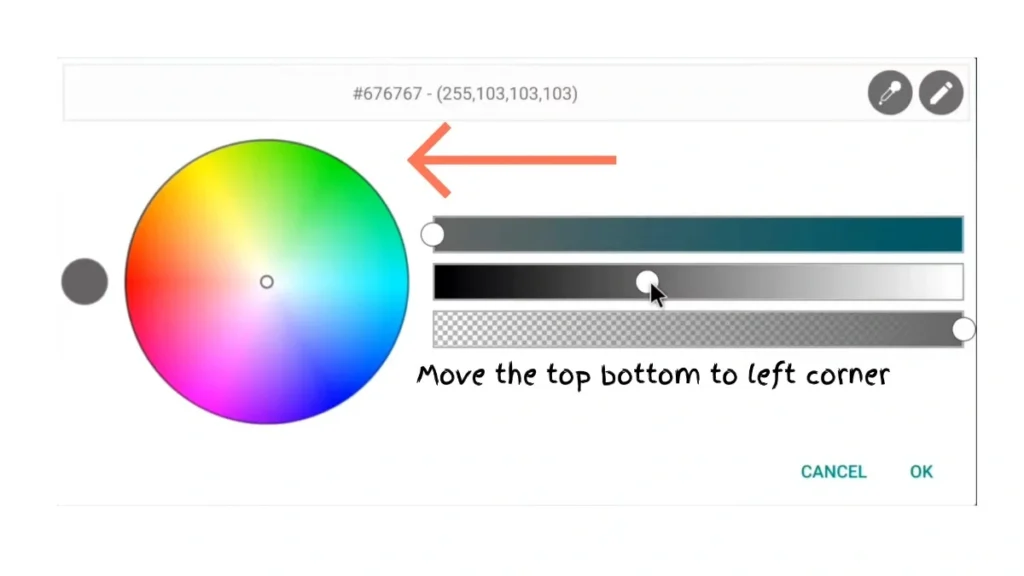
- It’s time to select the color of the left end.
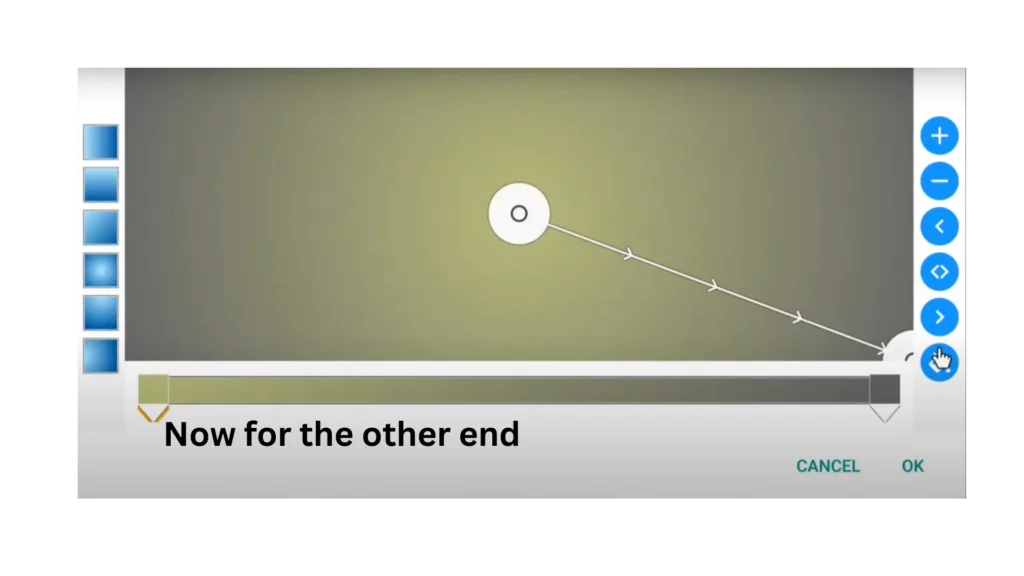
- To do this you ‘ll have to move the top bar to the left and the middle bar to the right and hit OK.
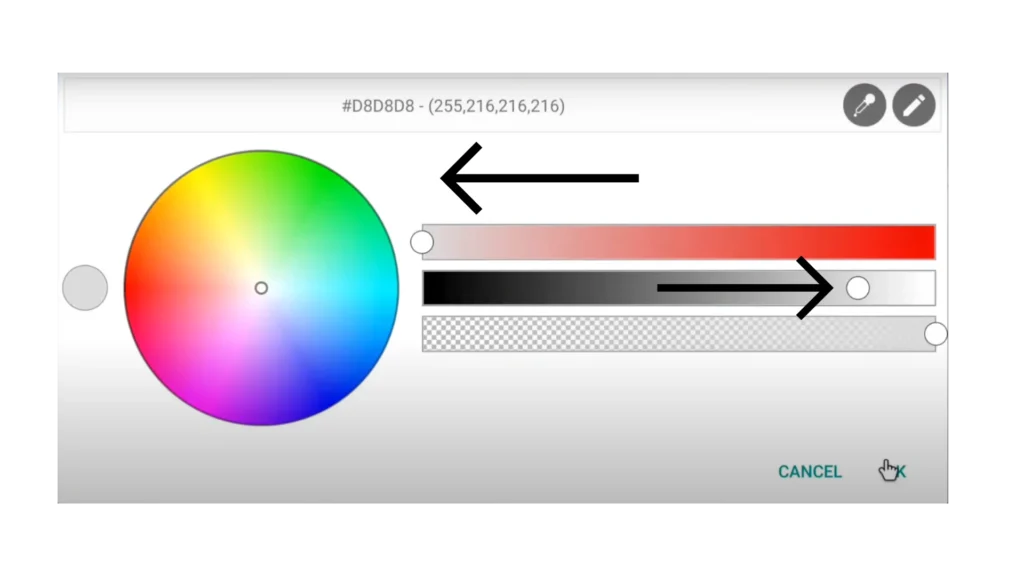
Step 3- Selection of shape and color
- As we change the colour of the background we also choose the shape of the logo we want that’s why we choose in the tools the “shapes” option.
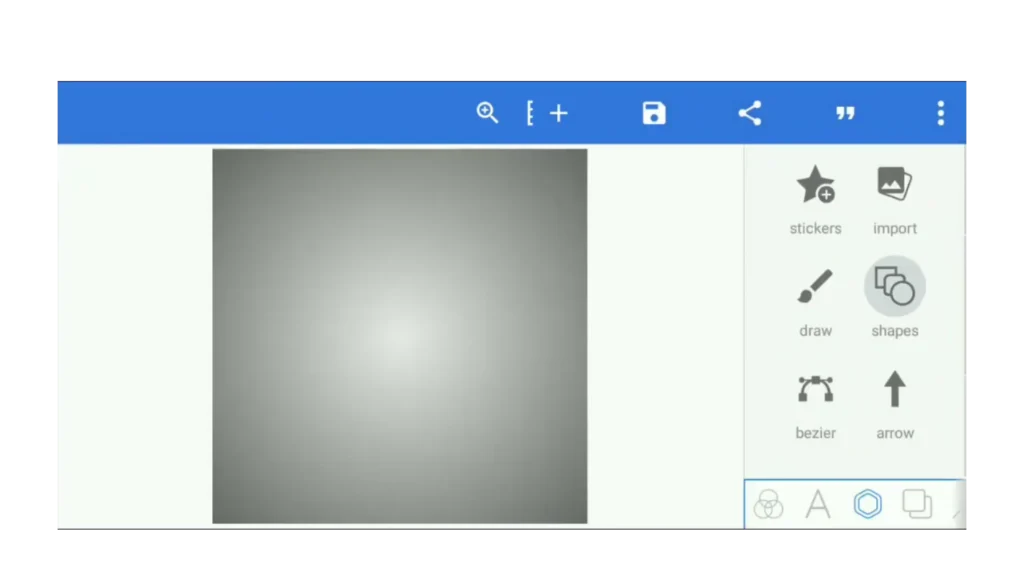
- Then we select a circle
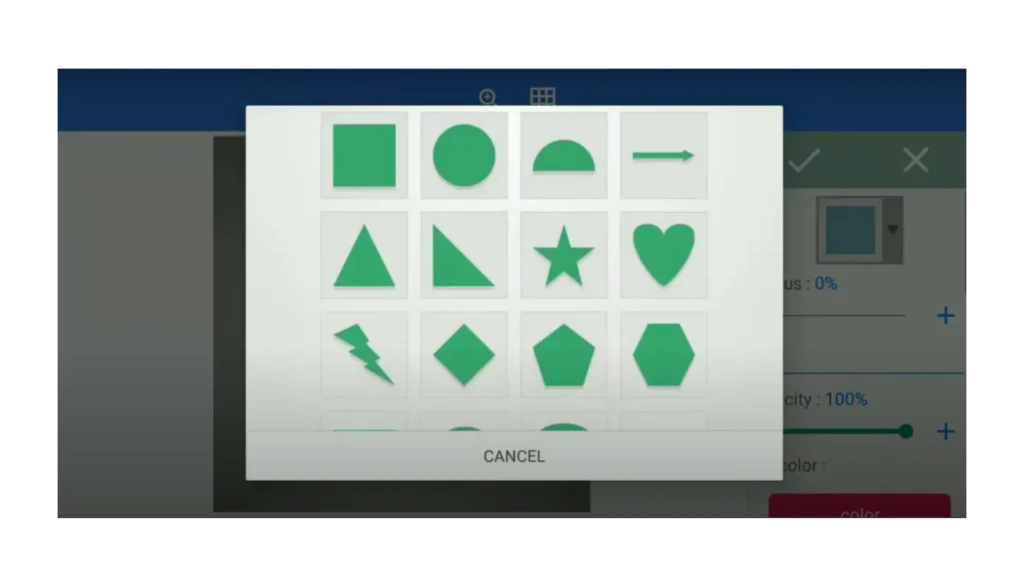
- Select the color of the logo.
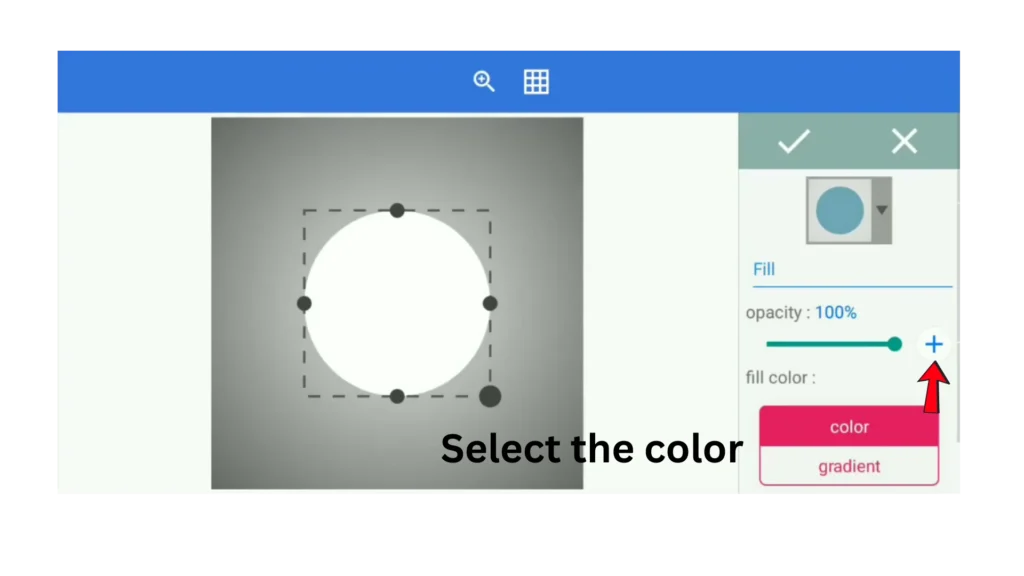
Step 4- Setting of shadows
- Enable the shadows for the circle.
- Make blur Radius 25.
- Set offset x to 50.
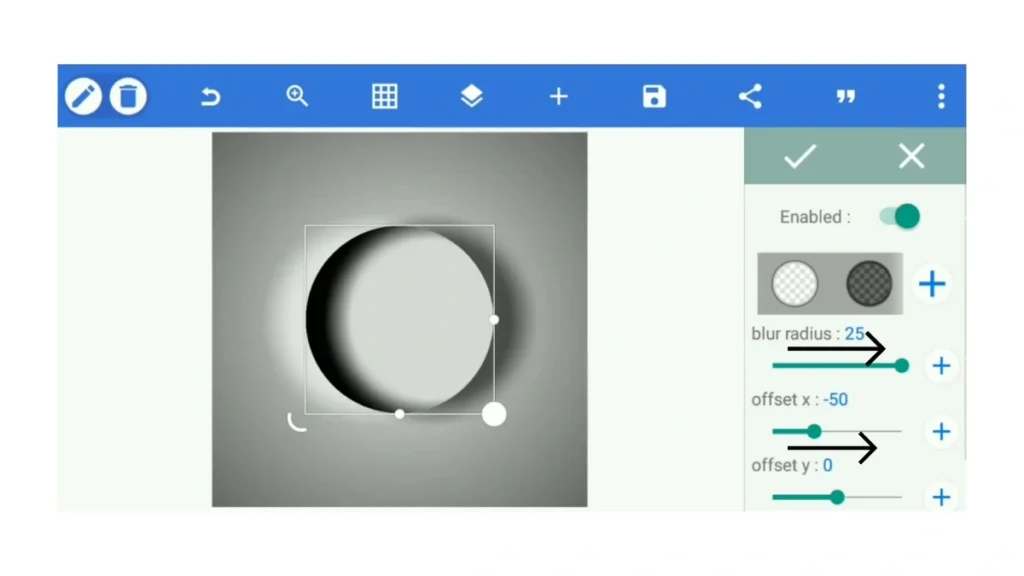
- If you need more color corrections go to the gradients and go to the bottom option and fix the value (150, 0, 0, 0).
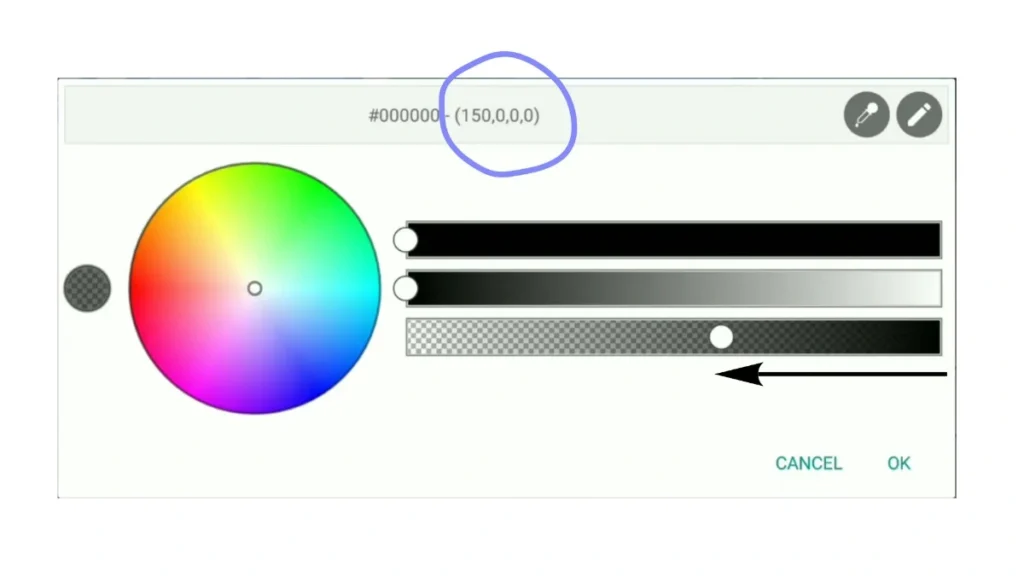
“Powder red color with full opacity RGBA (150, 0, 0, 0 ) where the red dominates and there is no green or blue.
Or more technically in two words:
- Deep Red
- Opaque Red
- Muted Crimson
- Solid Red
- RGB Tone
Step 5 – Making a Copy of Circle
In the bar you can make a copy of the circle using the copy tool.
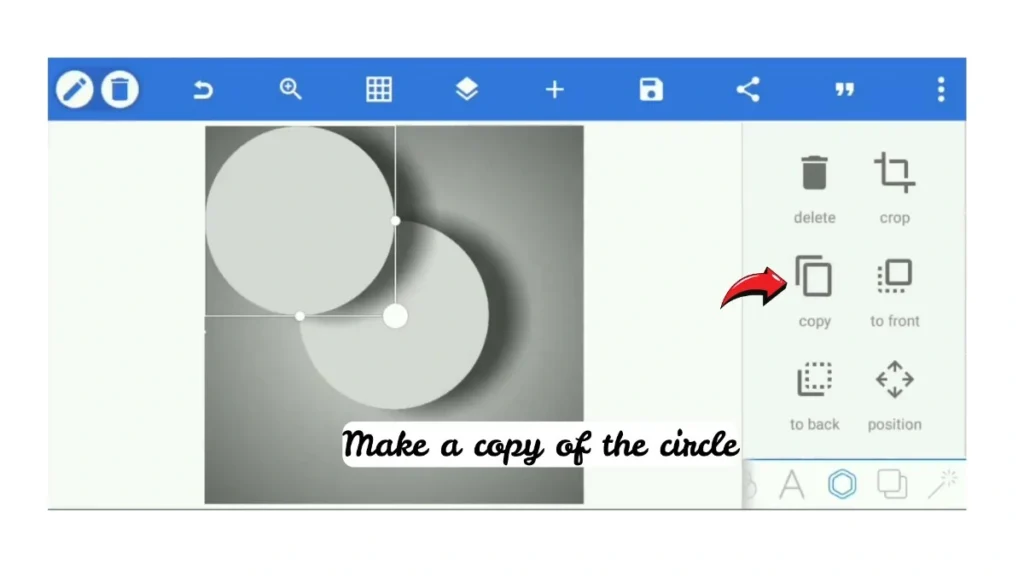
- The idea here is making a 3d effect with the help of a 2nd circle.
- Basically we put a copied circle on top of the previous one with the help of alignment tools.
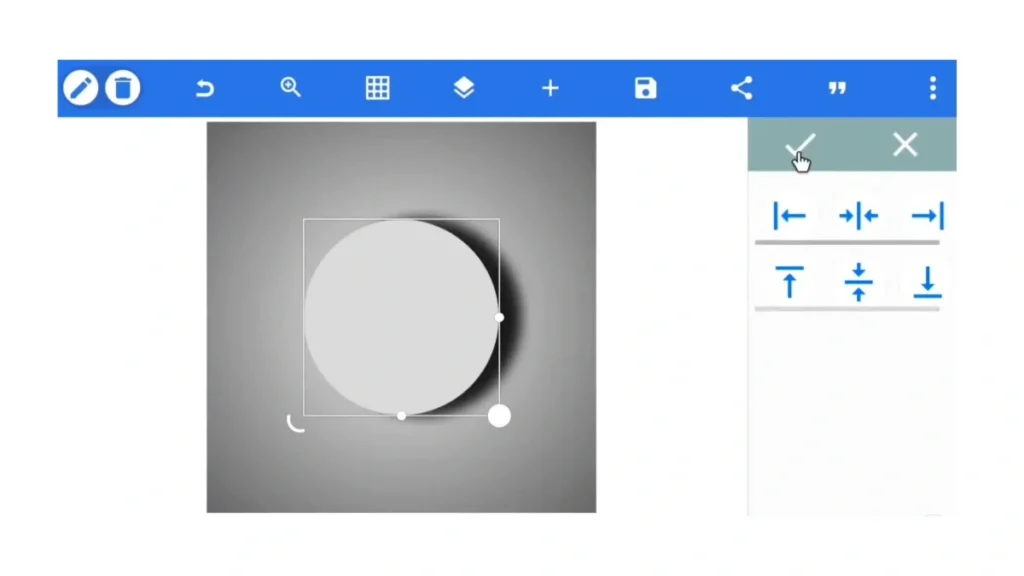
- Do the same steps for the second circle.
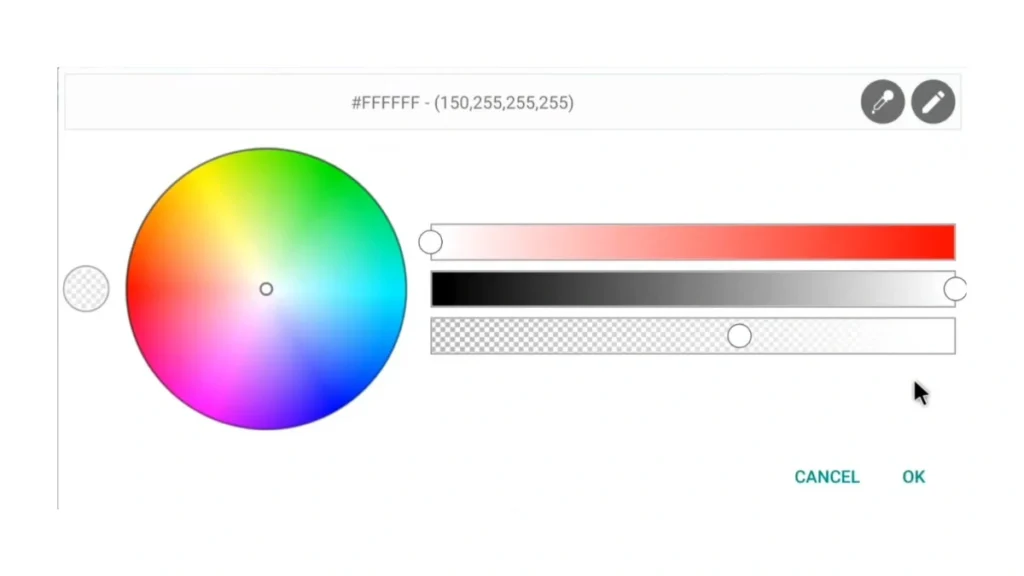
- On shadow adjustment set offset x value to -50 for the second circle.
Step 6 – Creating 3D Effect
- After it ‘s set the inner shadows it ‘s time to set the inner shadows in the second circle.
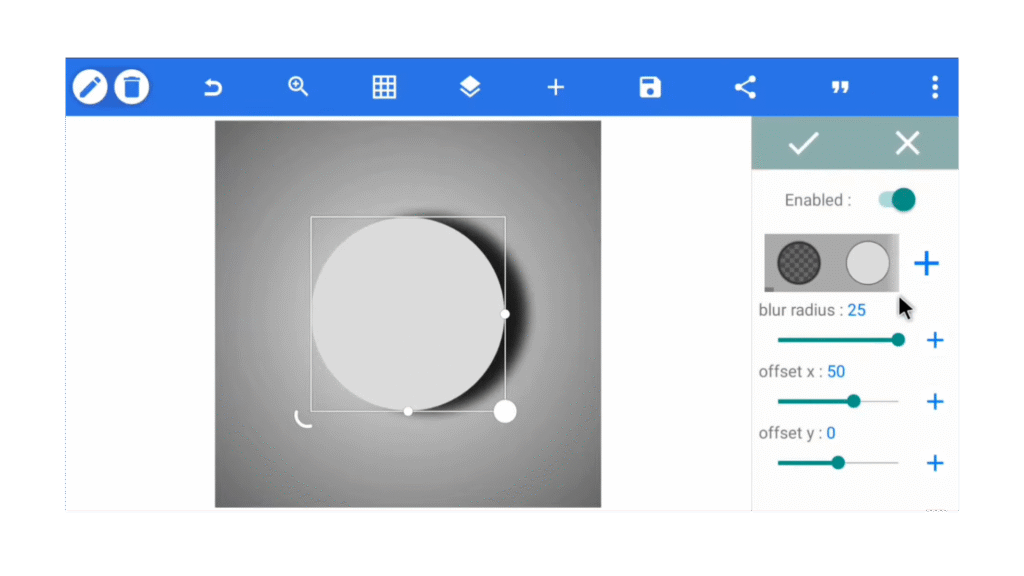
- “On” the mentioned options and make the smoothness 100 %
- Then draw the shape like the picture and change the color of the drawn shape.
- After that adjust the size of the shape.
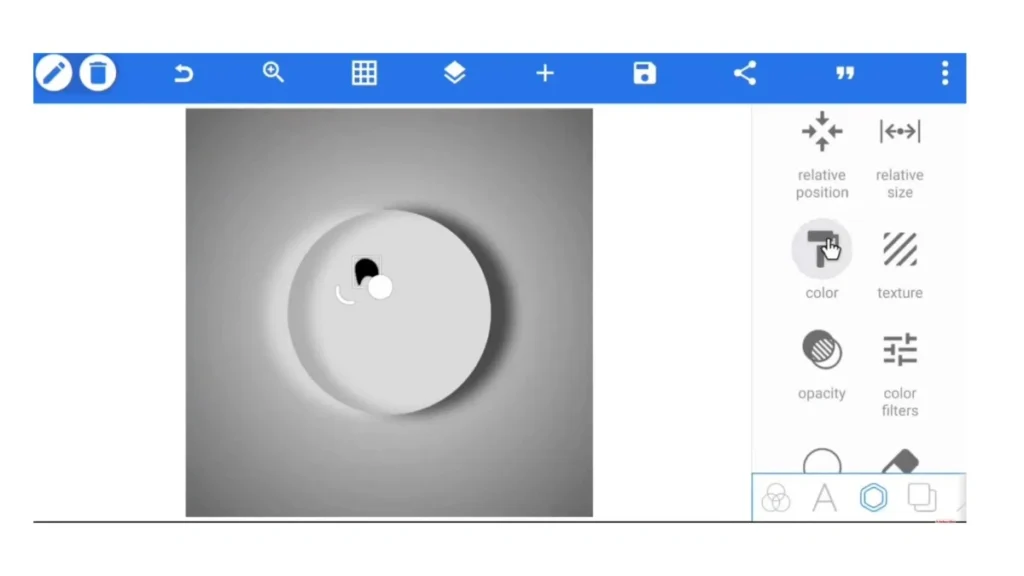
- To make the shapes white just add another shape to the shape.
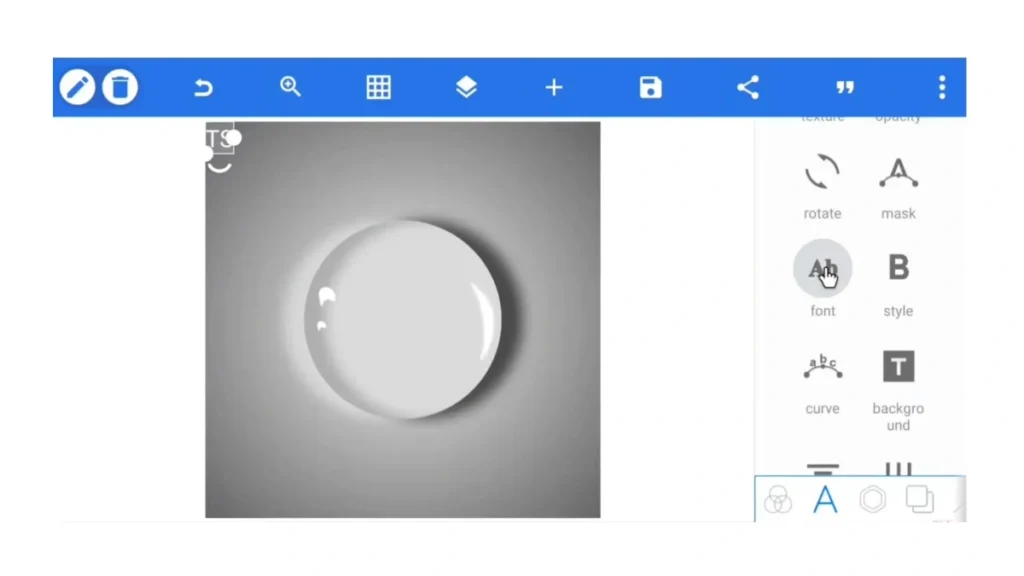
Step 7 – Adding Text
- Select the “text” option And type the desired text.
- Choose the “Amaranth-Bold” and adjust the size of the tex.
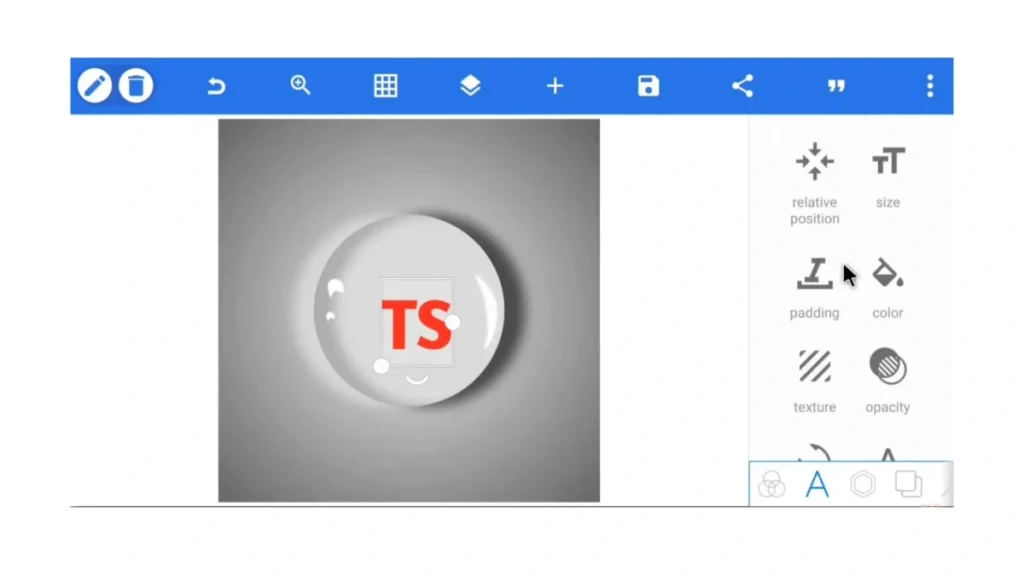
- Select the “perspective” option.
- Enable the button.
- Adjust the text in the required shape.
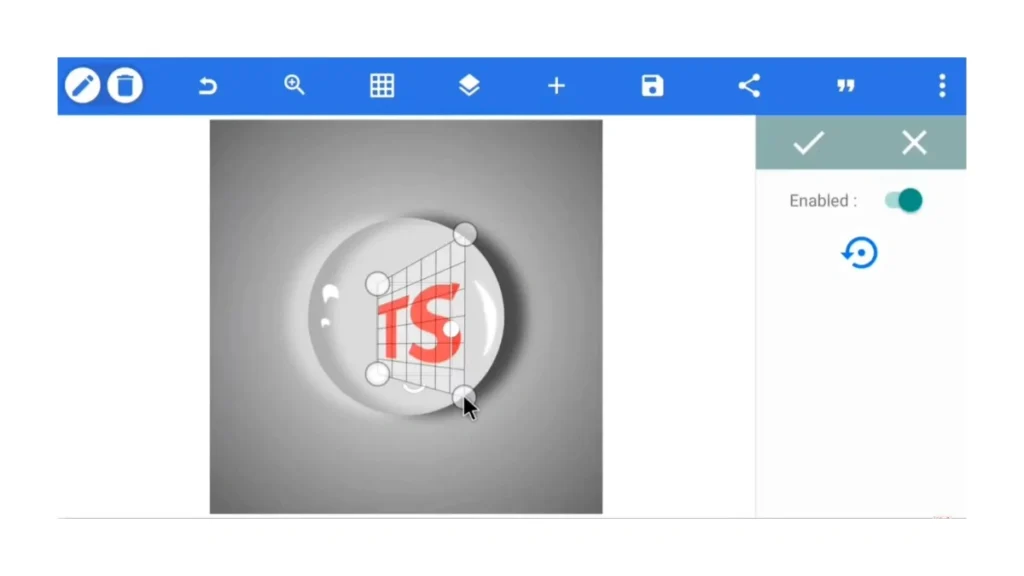
- Edit the text at the end; make it shadowy and opacity 0%.
- For finishing you change the text in the middle of the canvas.
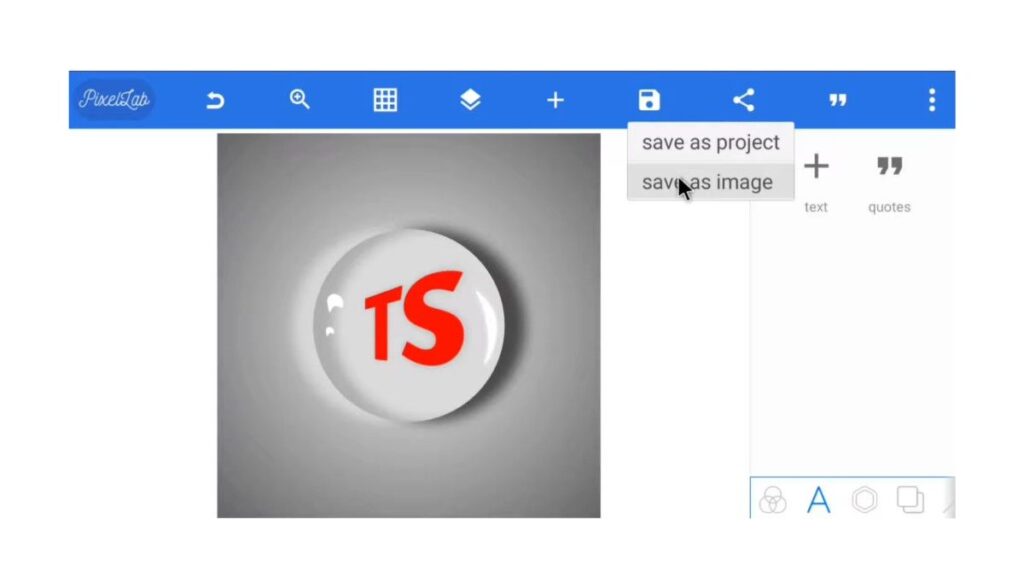
- Here we have the final logo.
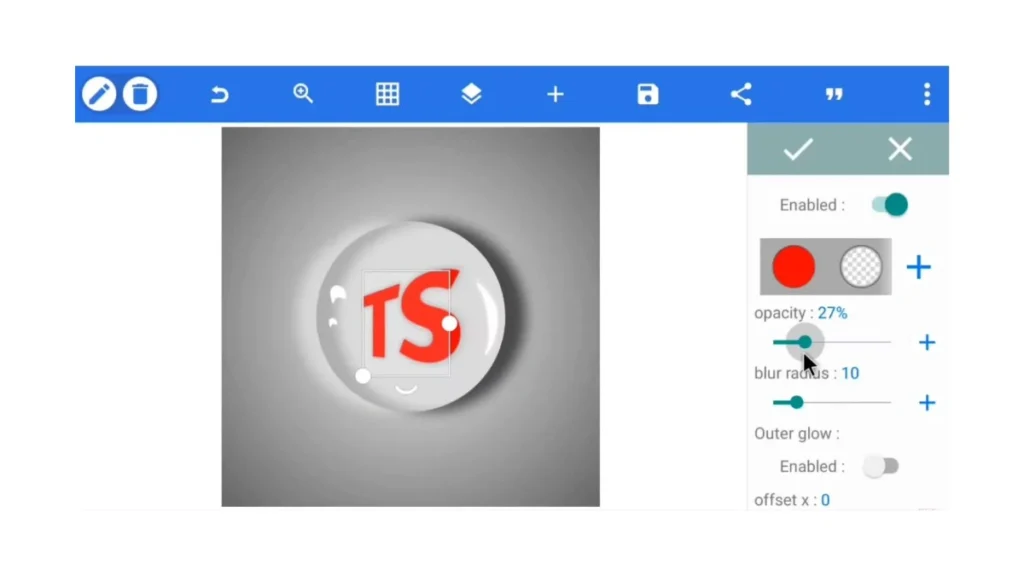
- Now the logo is ready to use.
Final Thoughts
A 3D logo in Pixellab is really simple. We will be able to create professional looking logos with a bit of effort just from your Android phone or PC. With just a little care we can bring together the background, shapes, shadows and even text in a stunning 3D effect and make your logo stand out.
If you follow this step-by-step tutorial, you can make logo by yourself without much knowledge in graphic design. With practice and creativity you can go through all shapes, colors and effects, to create unique logos for your brand or business.
FAQs
Can Pixellab create a logo?
Yes, Pixellab does. With its tools we can easily edit text, shapes, icons and effects to create a logo yourself. Just open a new project, customize all the elements and save it as PNG (for transparent background).